


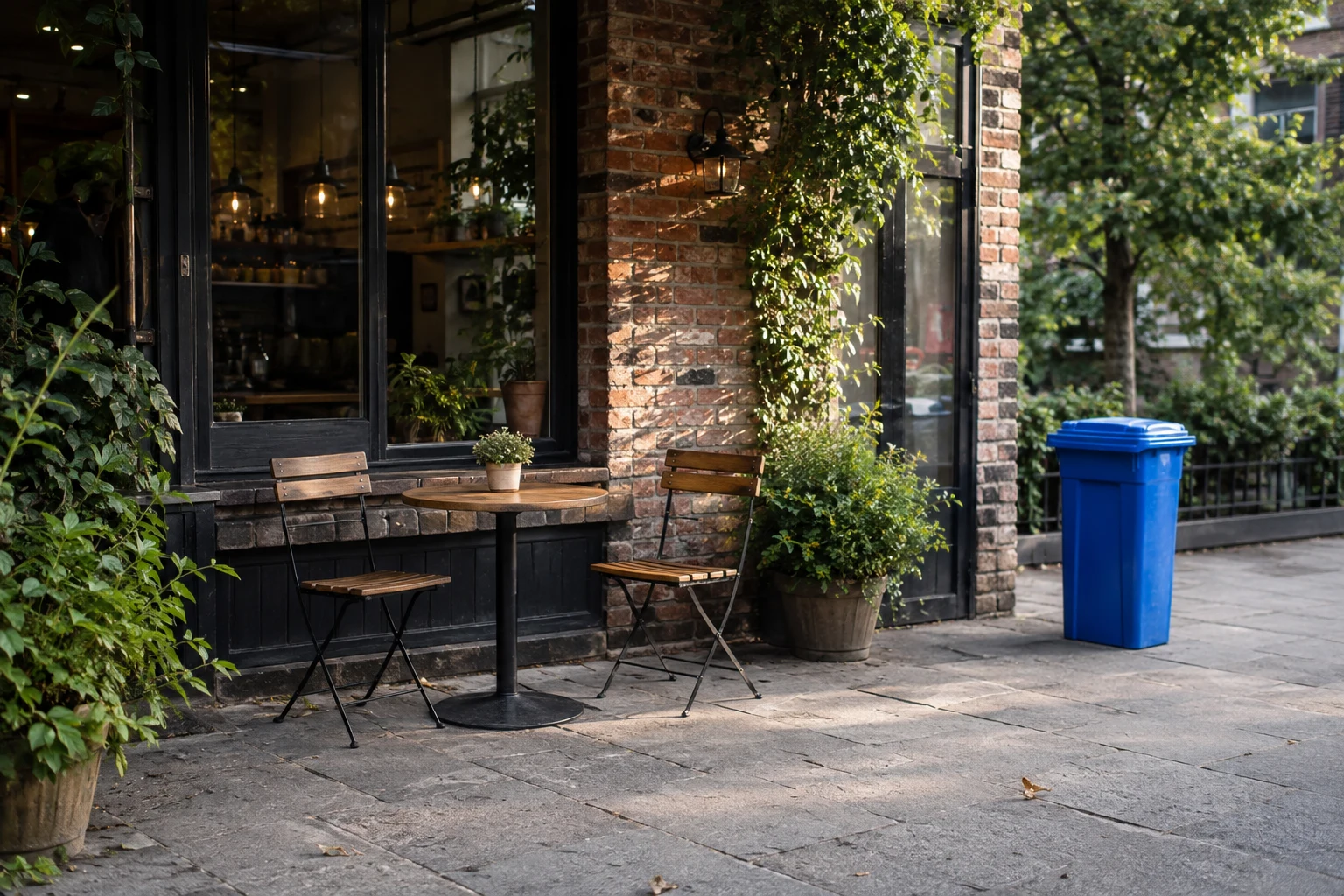
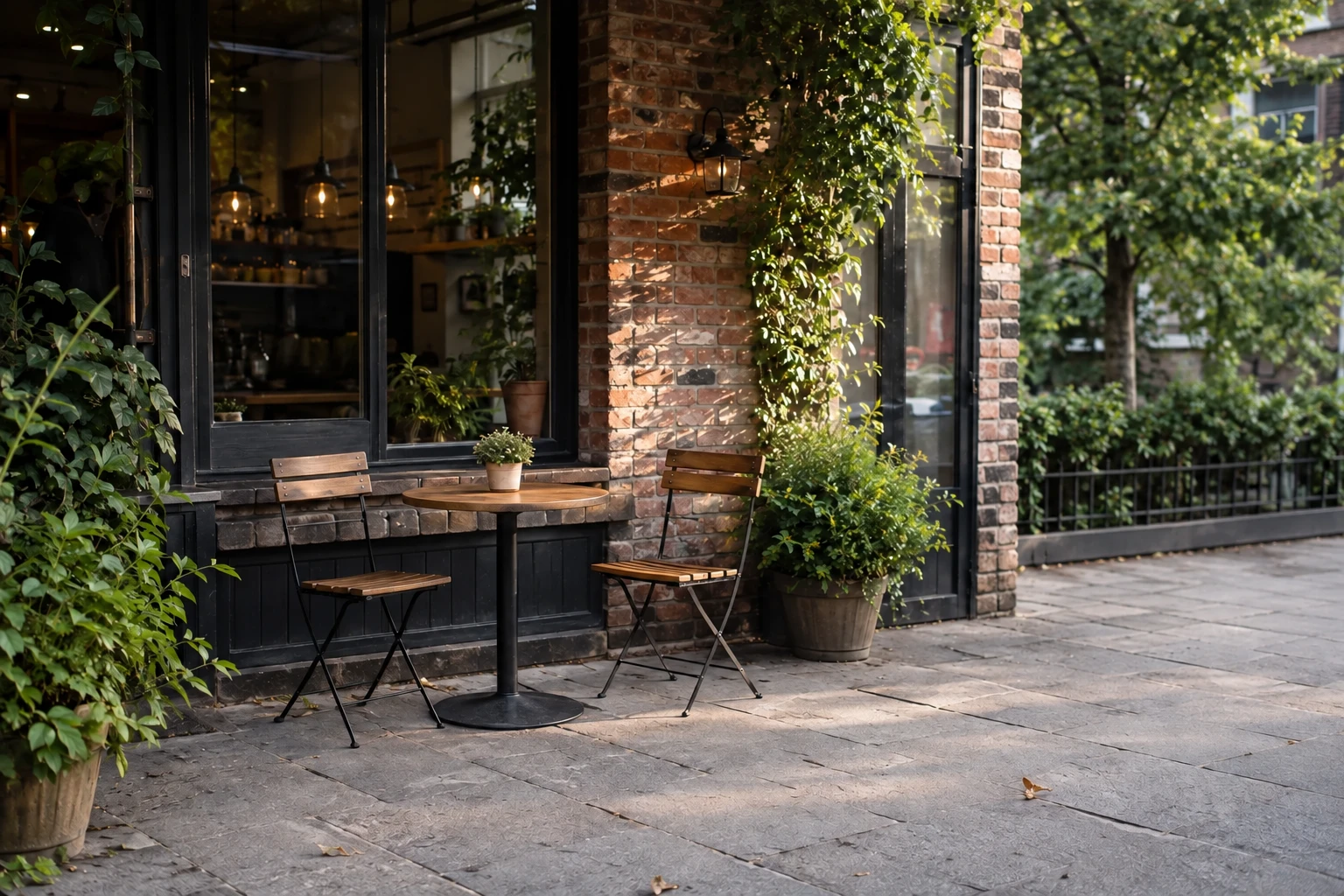
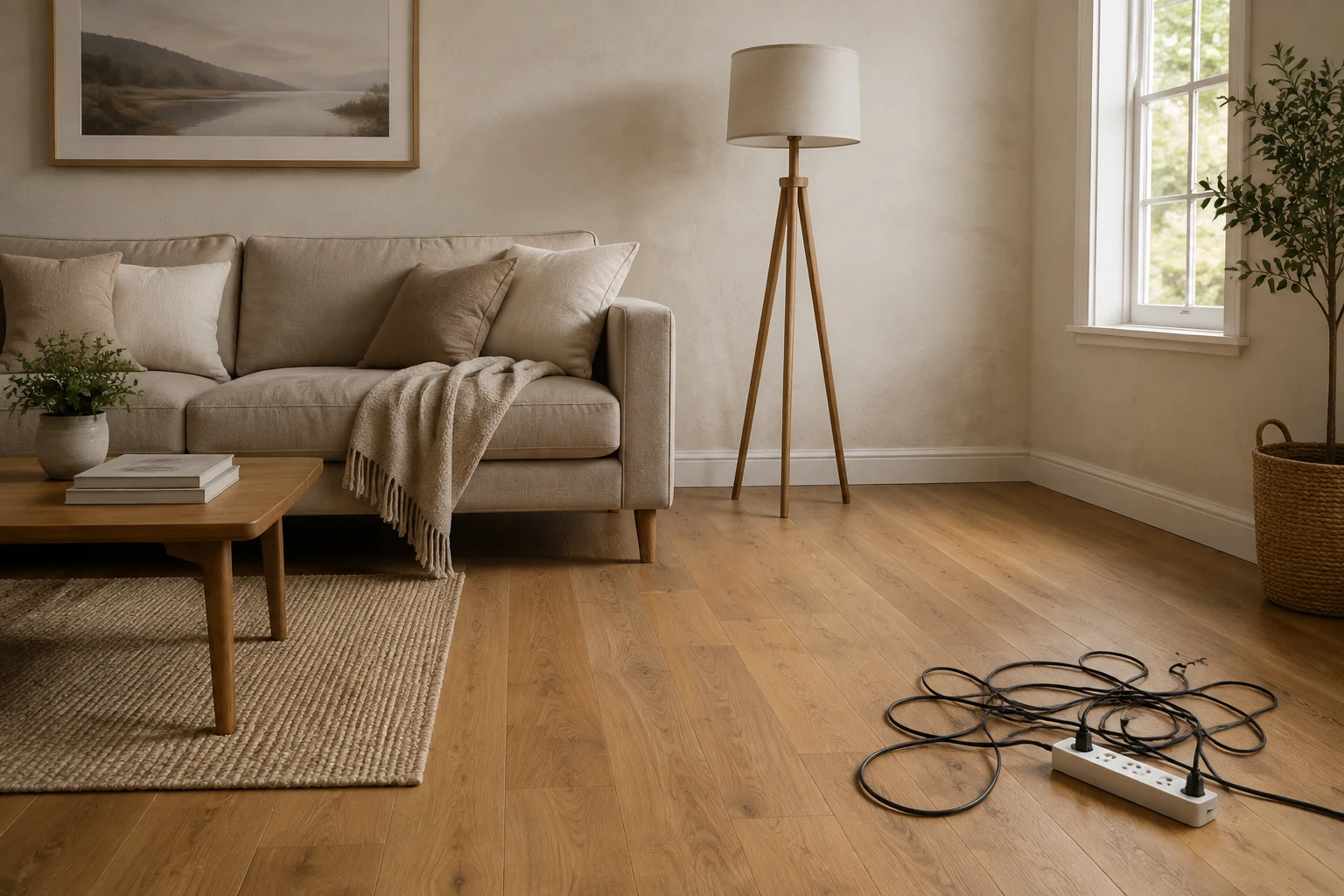
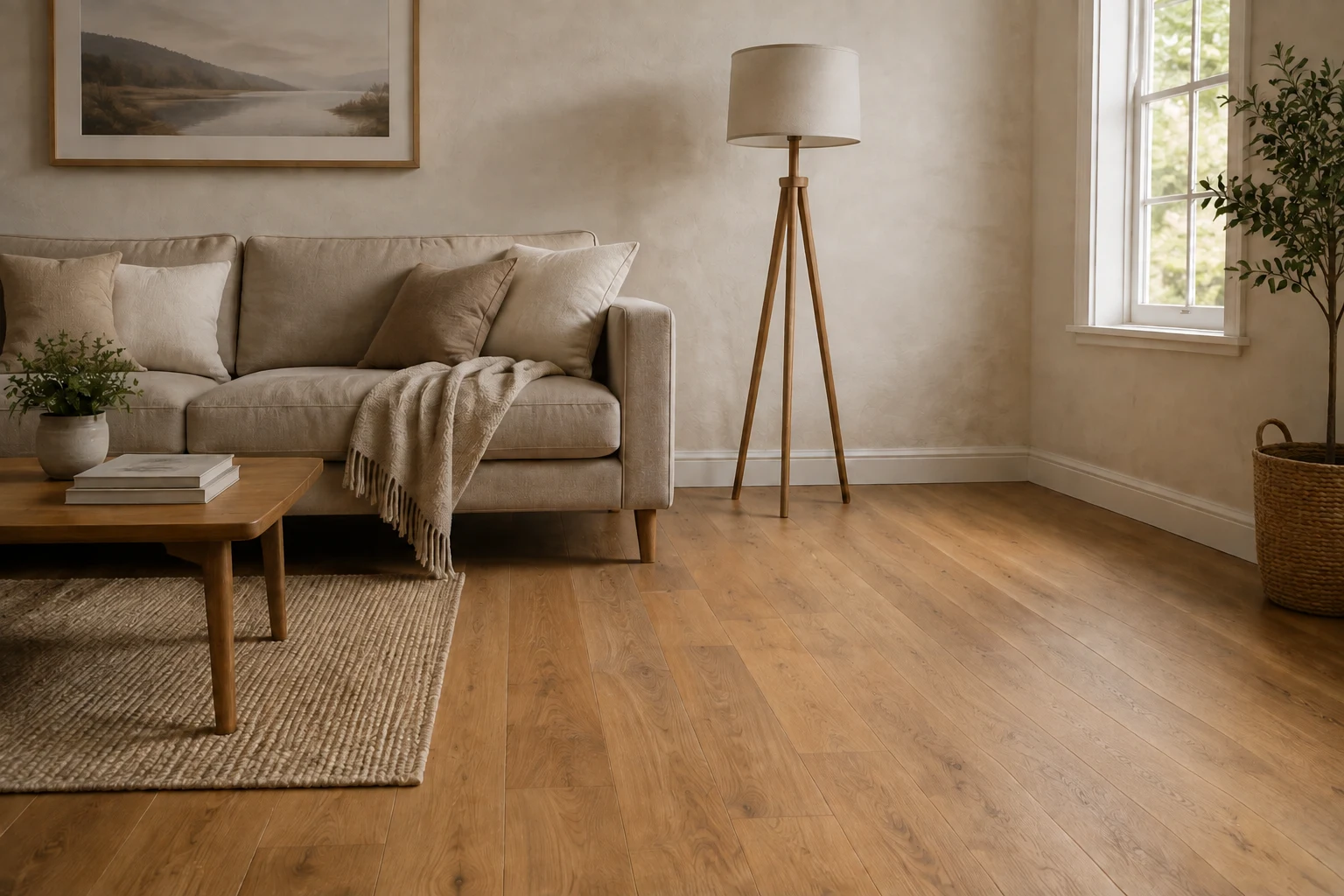




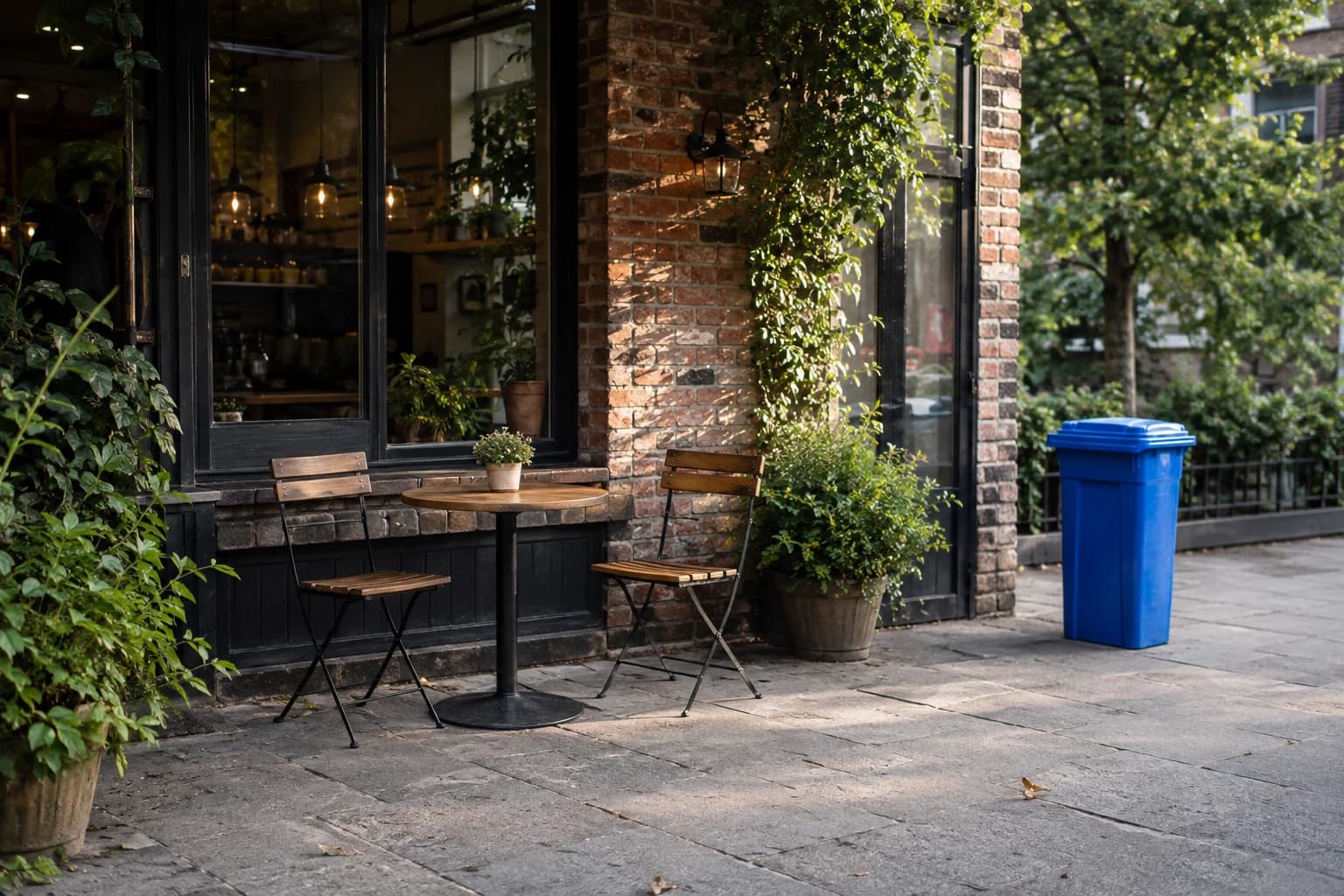
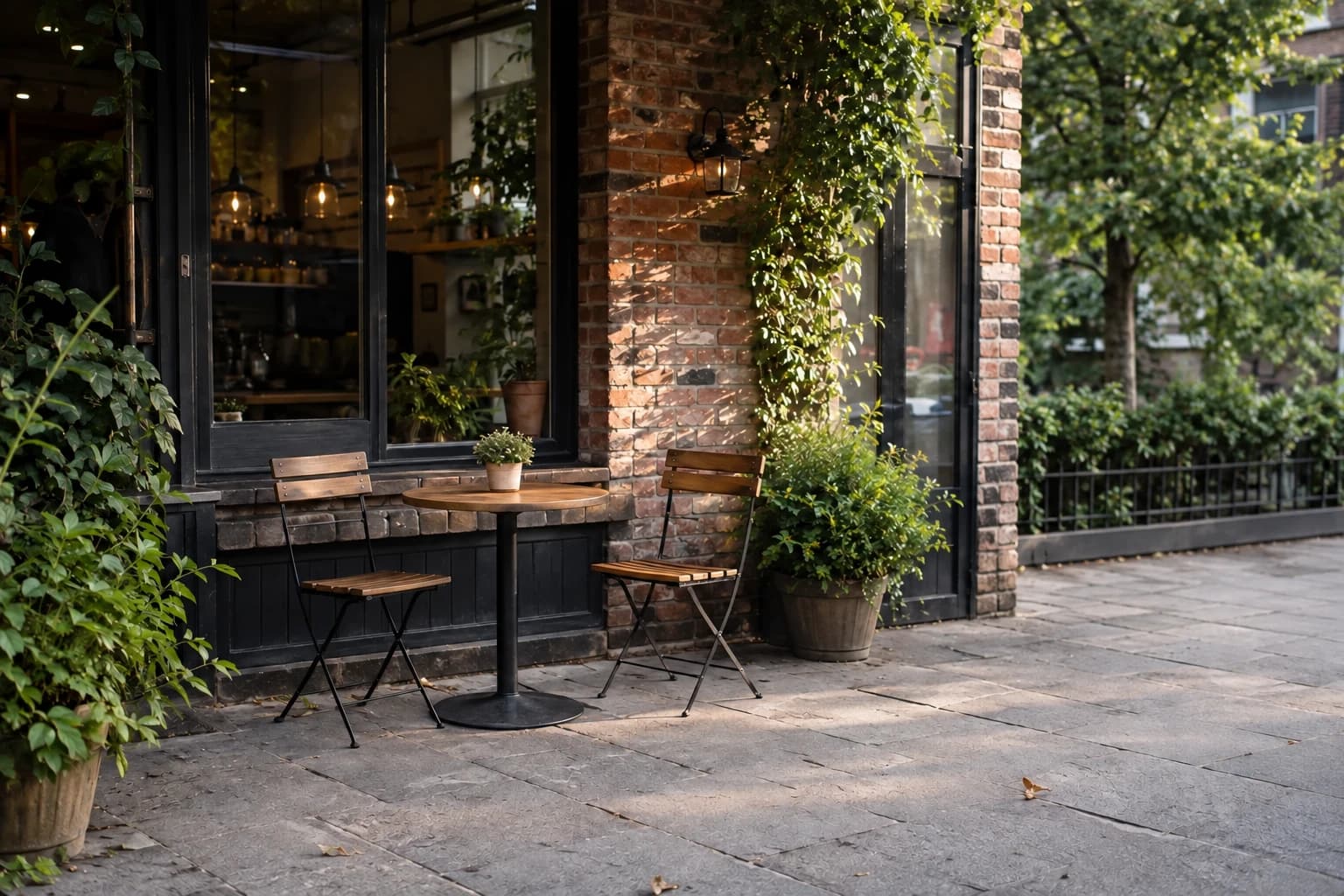
BeforeAfter
Remove unwanted objects from the background
Erase a trash bin or other clutter without cropping out the part of the scene you want to keep.
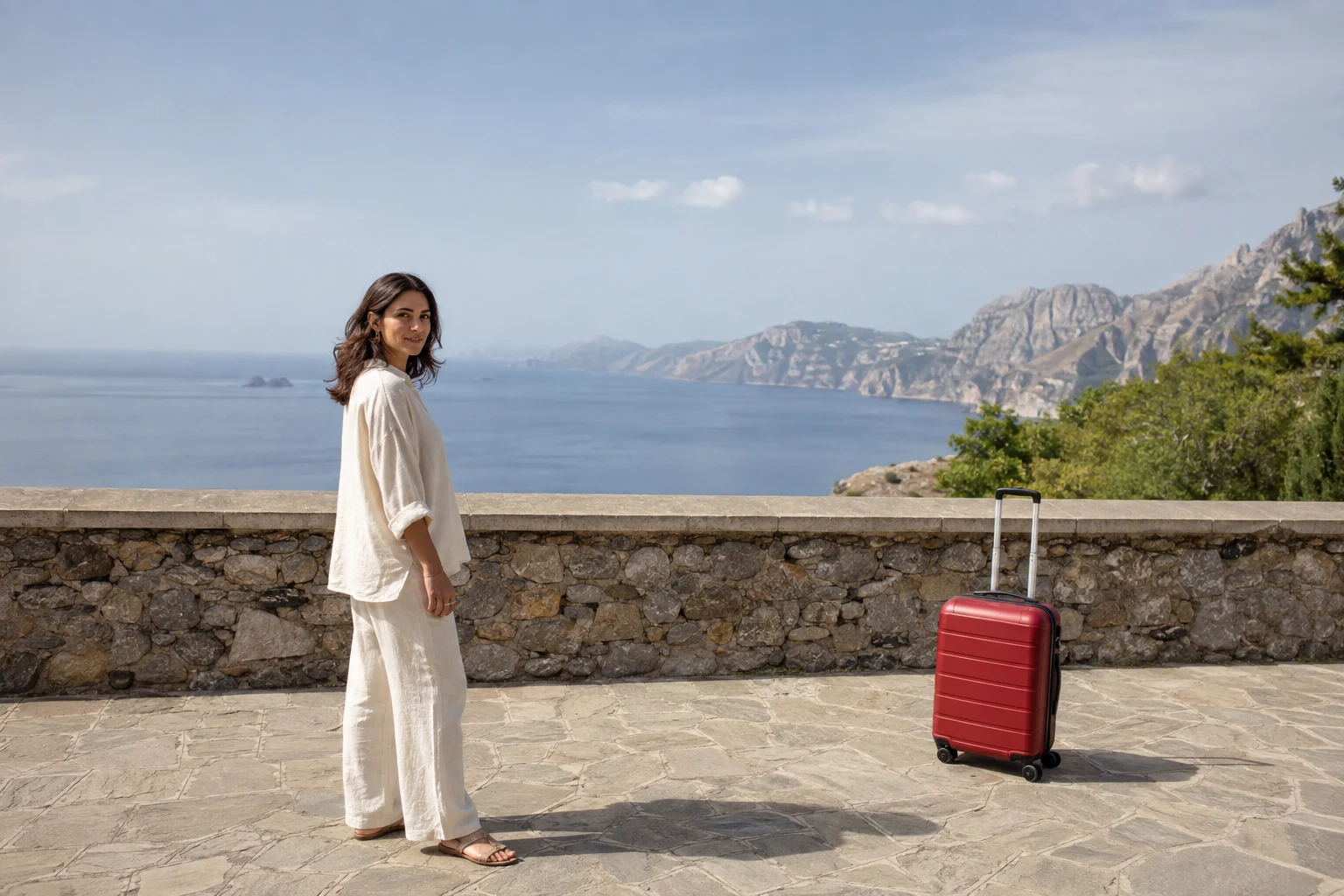
Remove an objectRemove unwanted objects from photos without cropping. Brush over a stray suitcase, a passerby or a loose cable, and AI fills in the background.
What would you like to remove?
Upload a photo and brush over what you want to remove, including its shadow. Keep some of the surrounding background unselected.
Your edited photo
Before-and-after examples for travel, interior and product photos.
Erase a trash bin or other clutter without cropping out the part of the scene you want to keep.
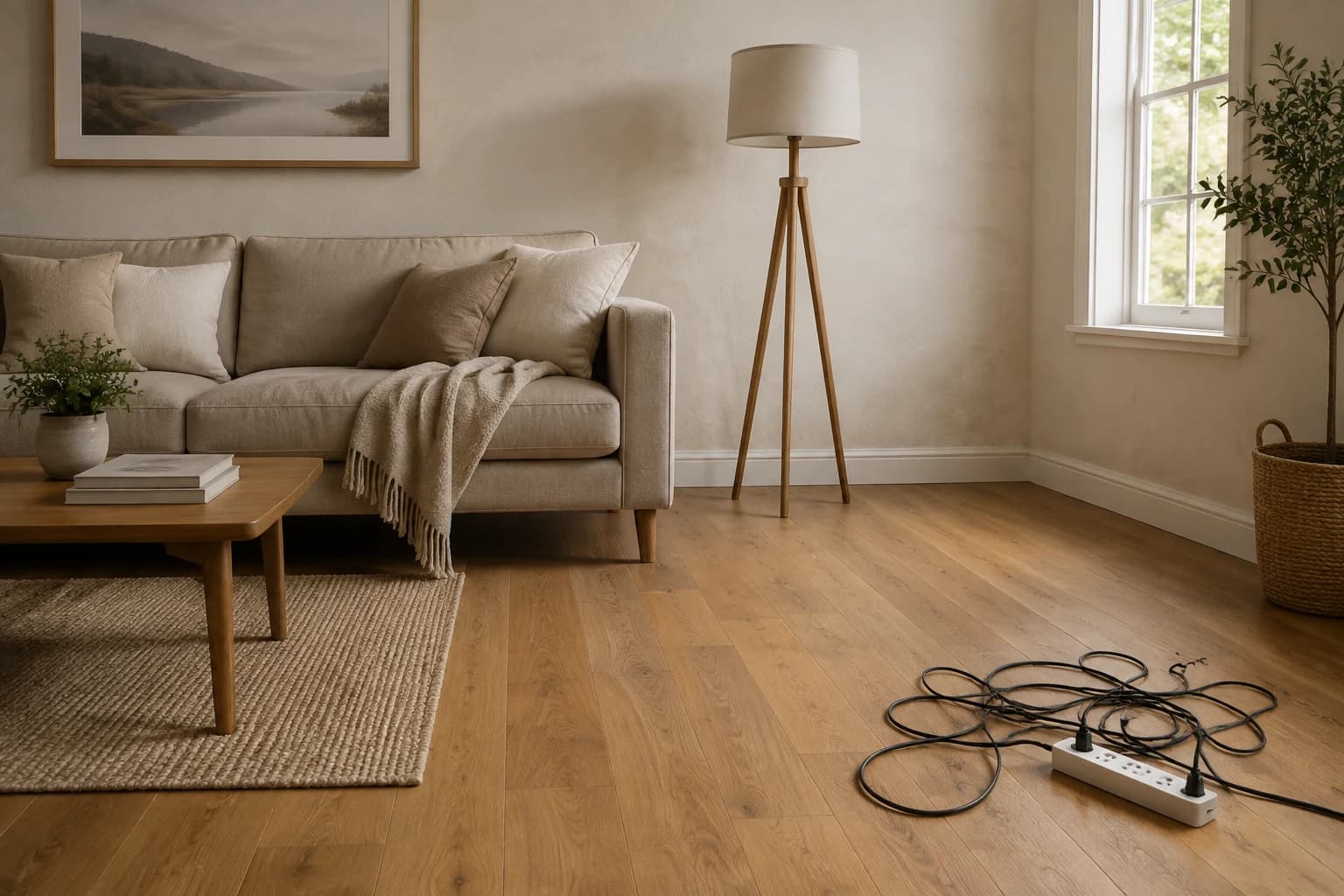
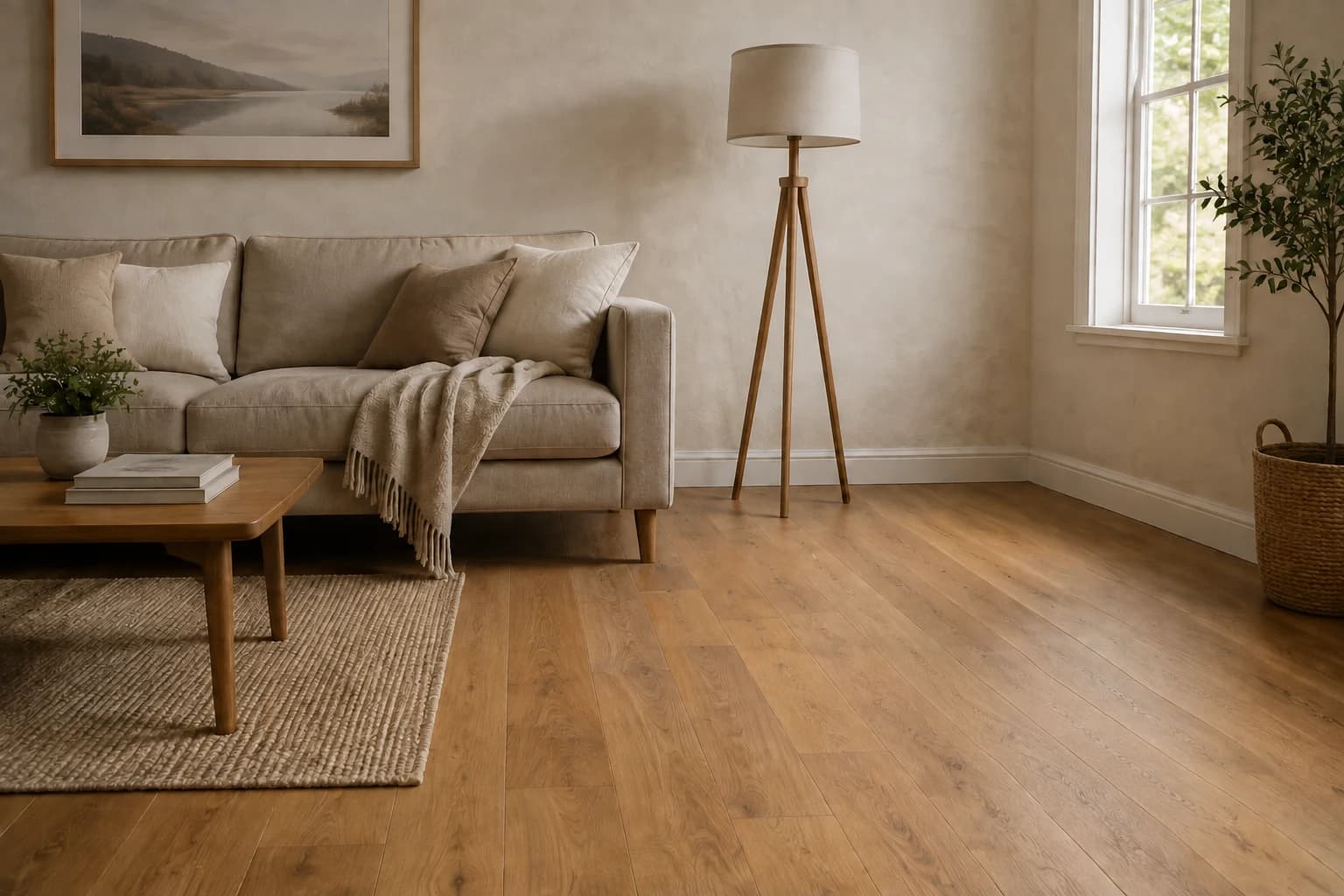
Remove an objectBrush over loose wires and power strips for a tidier view of your space.
Remove an objectRemove packing paper and spare props so shoppers can focus on the product.
Remove an objectSelect a passerby in the background to bring the focus back to the view.
Remove an objectChoose the area to edit and let AI work on the background.
Brush over the object instead of describing where it is in the photo.
AI uses the surrounding colors and textures to fill the area where the object was.
Remove an object without cropping away the surrounding scene.
Upload a photo, mark the object and download your edit.
Choose one JPG, PNG or WebP image.
Adjust the brush size and cover the object. Add a short note if it helps.
Click Remove an object, check the result and download your photo.
Want to improve the whole photo?
Use the AI photo enhancer for clarity, lighting and color after removing distractions.
What you can remove, how credits work and tips for a better result.
Each edit costs 8 credits. If you have free credits in your account, you can use them to try the tool. Sign in to check your balance and see how many edits you can make.
Upload your photo and brush over the entire object, including its shadow. Click remove to let AI fill the selected area using the surrounding scene.
Yes. Brush over the person you want to remove. People who stand apart from the main subject are usually easier to remove than someone overlapping a face or body.
No. Just brush over the object. You can add a short note if there is a detail you want to clarify, such as removing a cable but keeping the lamp.
The selection guides the edit and the tool aims to preserve the surrounding photo. AI can still alter nearby details, so check faces, lettering and edges before using the result.
Large objects and busy patterns can be harder to fill. Try removing one object at a time and include any remaining edges or shadows in your selection. AI creates a new background; it cannot reveal what was actually behind the object.
Use one JPG, PNG or WebP photo under 10 MB and up to 24 megapixels. Aspect ratios from 1:3 to 3:1 are supported. Results are PNG images with a long edge up to 2048 pixels.
If an edit fails, its credits are returned automatically. An edit that is still processing may simply need more time; credits are returned once it is marked as failed.
Edit, repair, or restyle a photo with a focused AI workflow. Choose a tool, upload your image, and get the result without starting from a blank prompt.
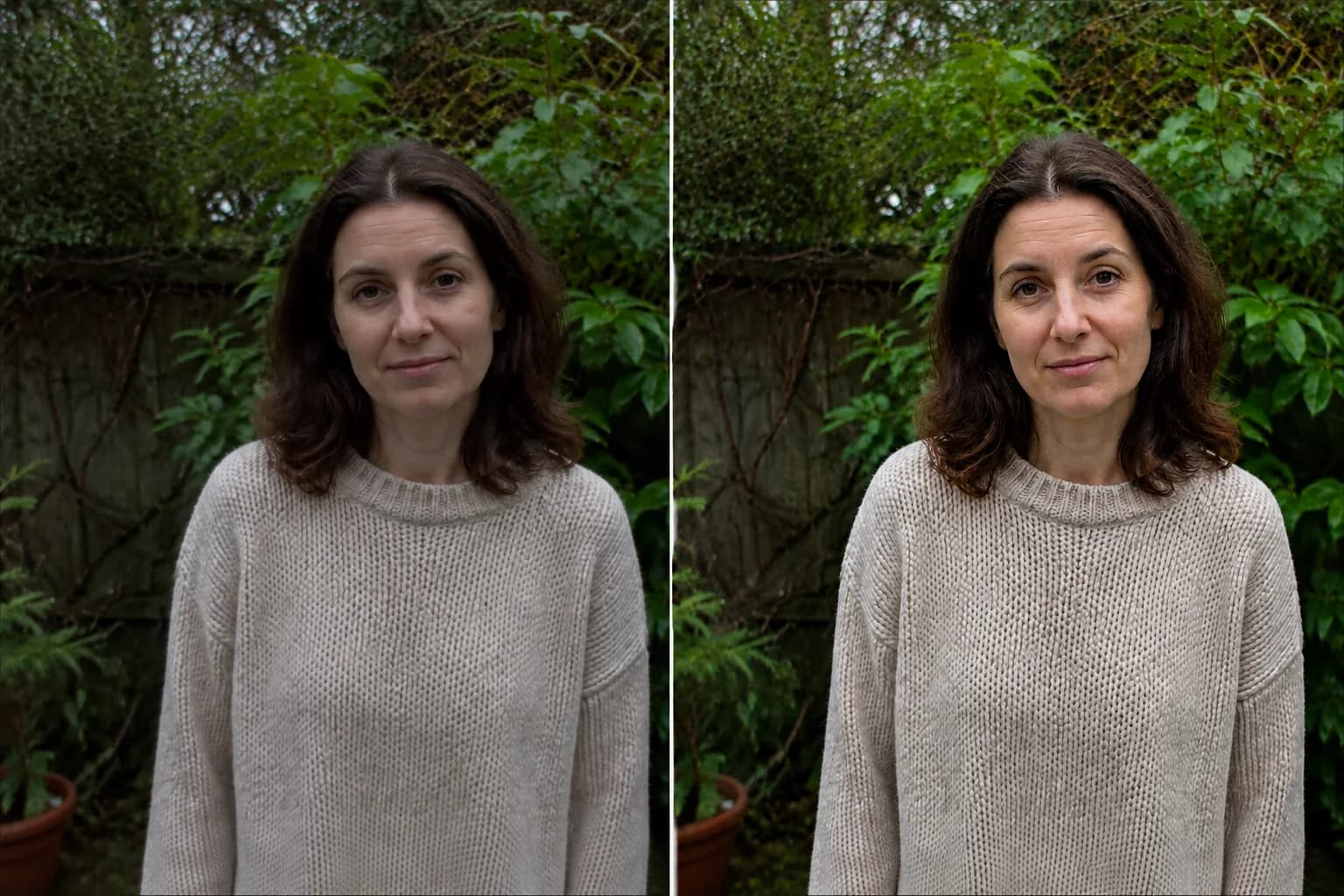 Before → After preview
Make blurry or dim photos look clearer with natural, portrait and low-light enhancement.
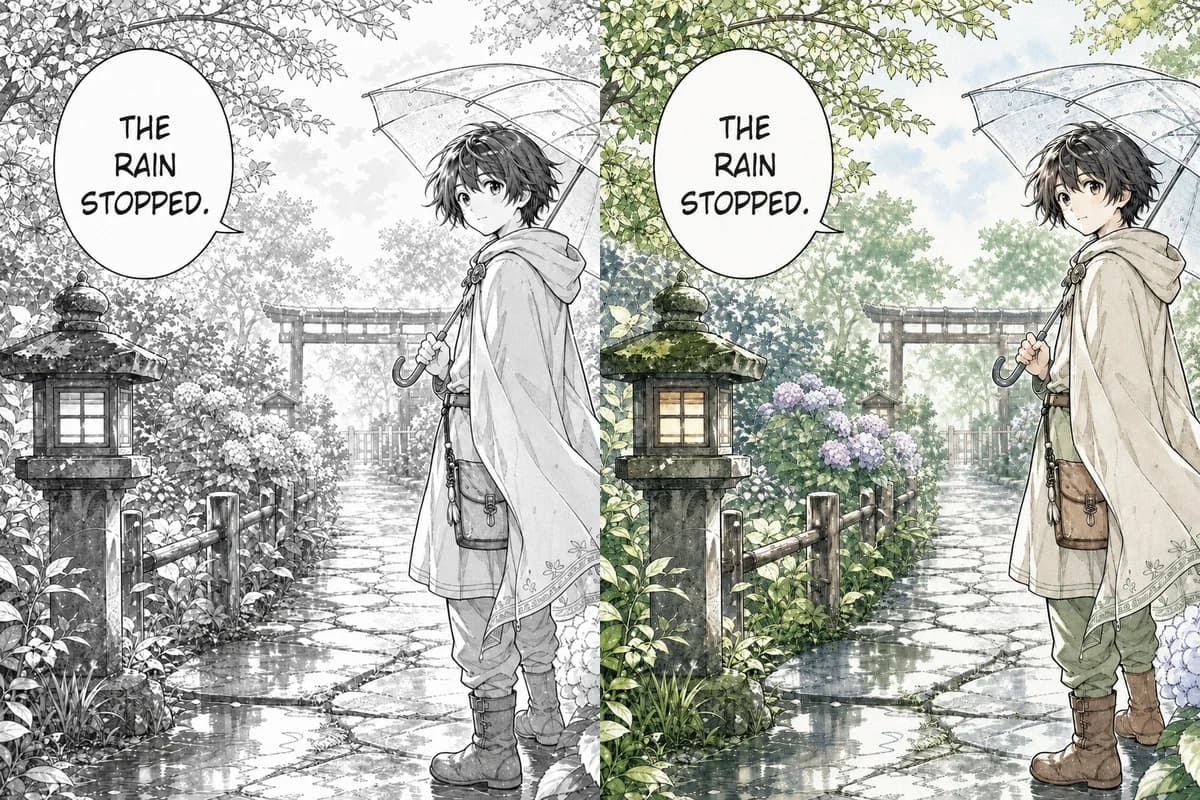 Line Art → Colored
Color black-and-white manga pages, webtoon panels, and line art with controls designed to retain ink lines, screentones, and speech bubbles.
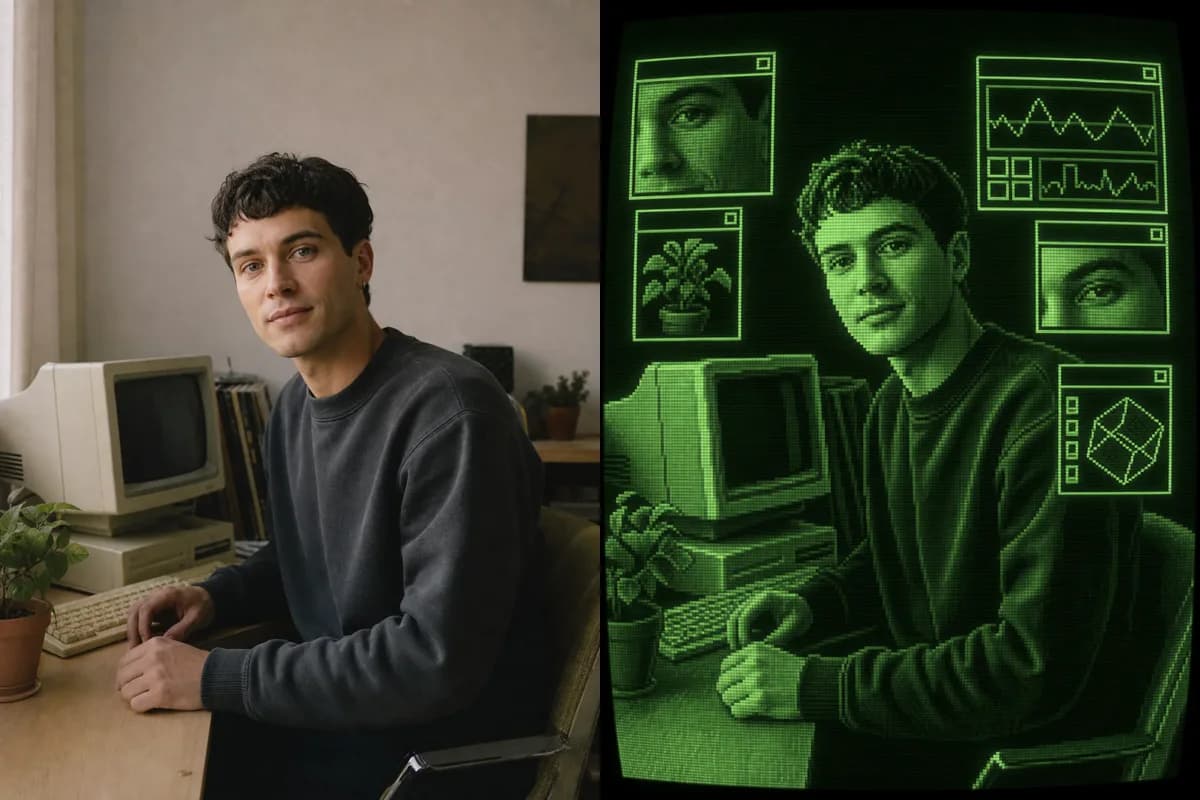 Photo → CRT Art
Turn a photo into retro CRT computer art with pixel palettes, scanlines, glow, and interface windows.
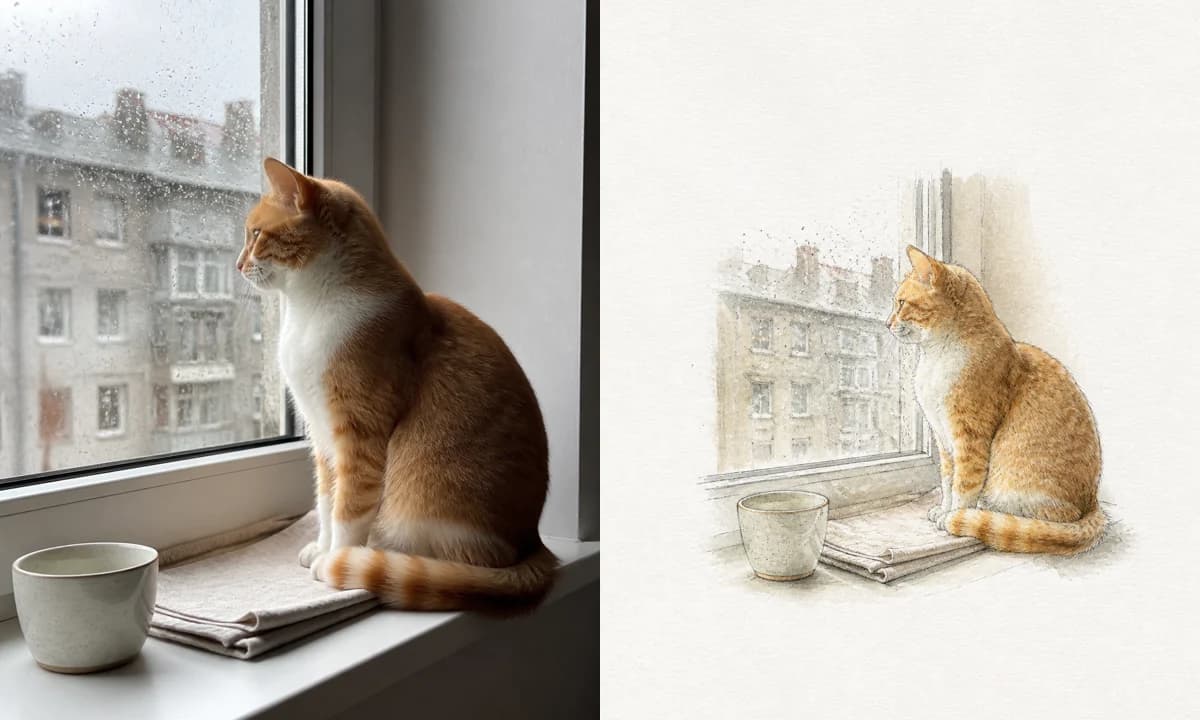 Photo → Illustration
Turn a photo into a watercolor, pencil, risograph, or ink illustration online.
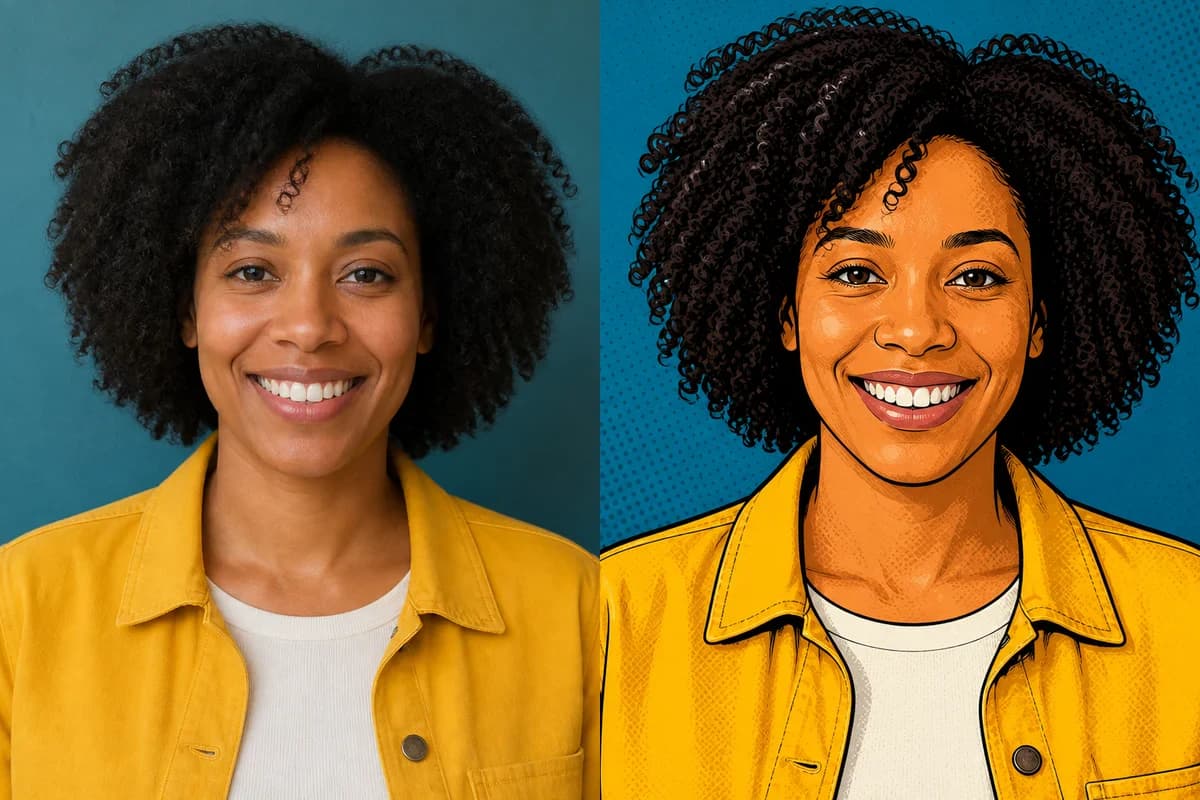 Photo → Cartoon
Turn any photo into a cartoon online with six one-click styles and an editable prompt.
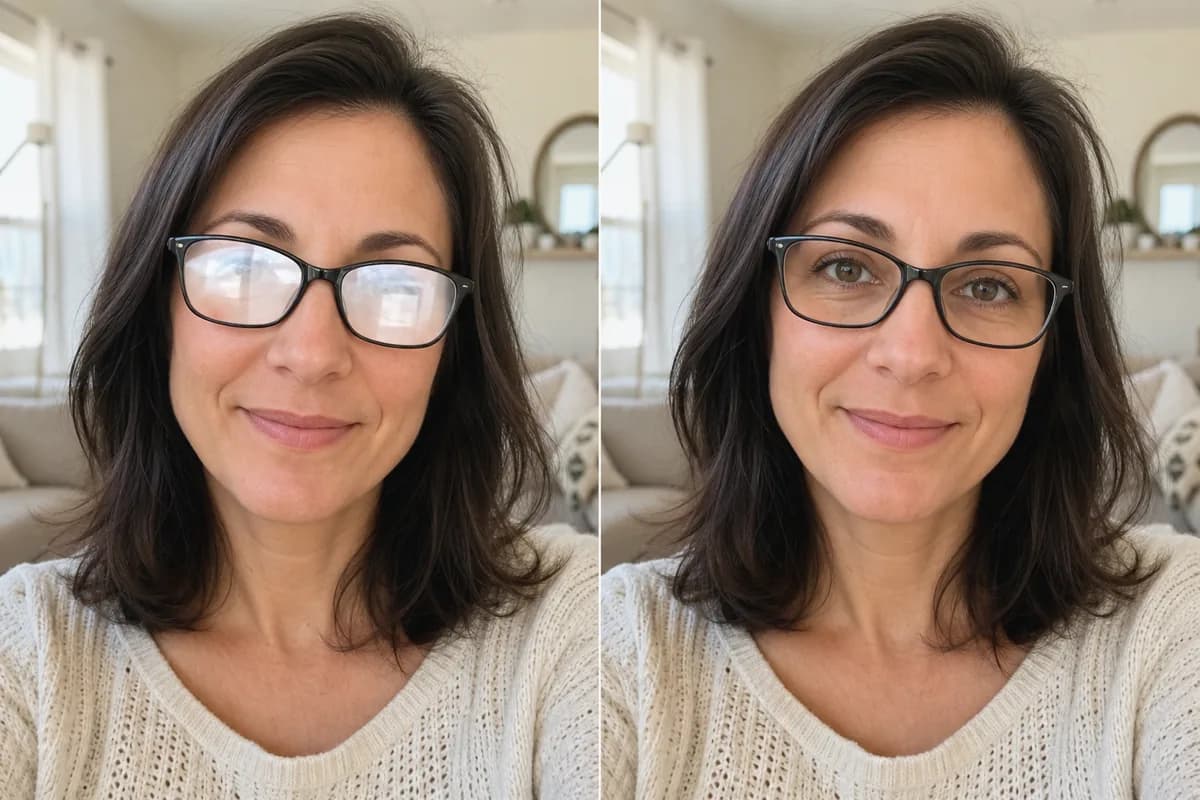 Before → After
Remove glare and reflections from glasses in portraits and group photos—same eyes, same frames, same face.
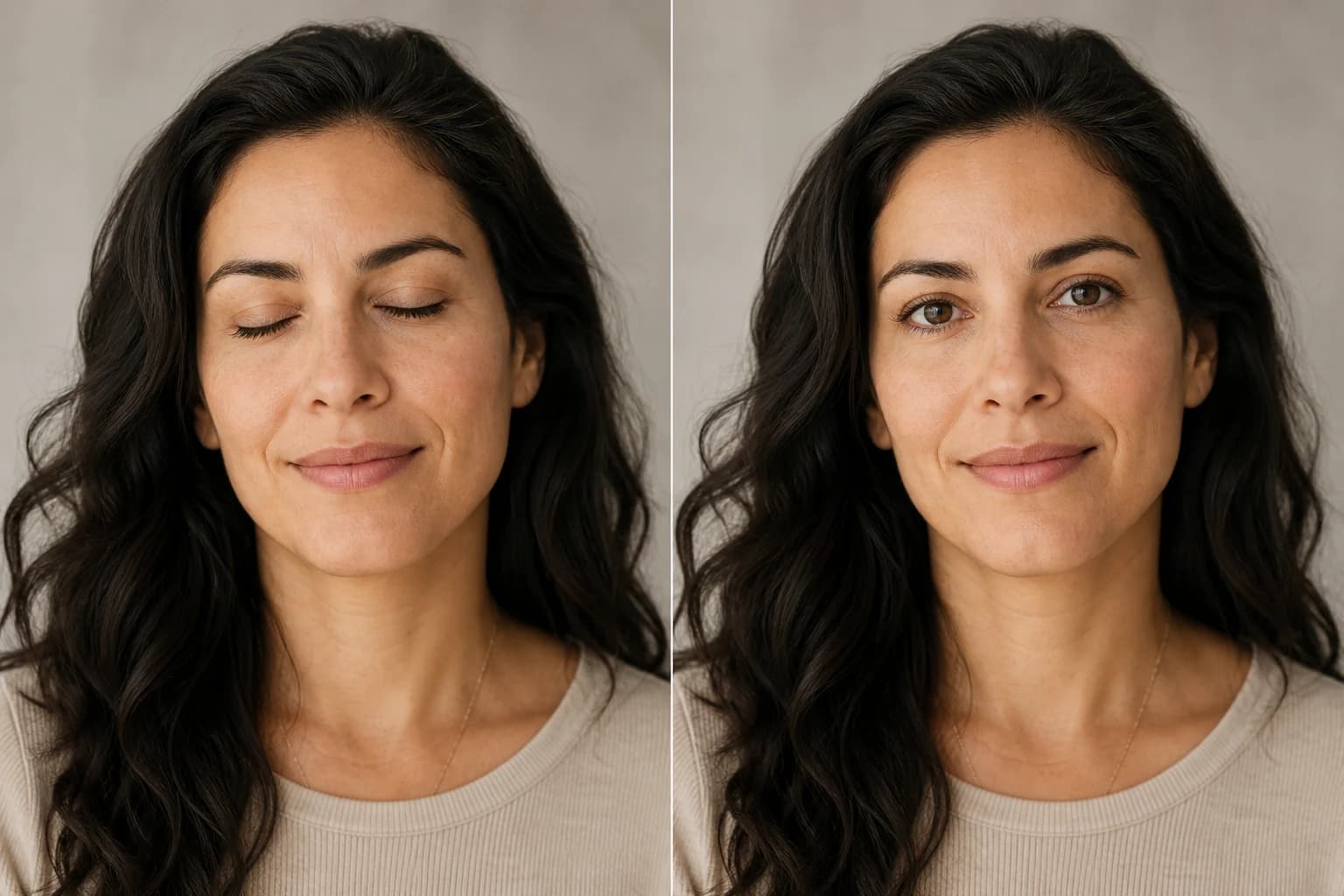 Before → After
Open closed, blinking, or half-shut eyes in portraits and group photos—same face, natural look.
Upload a photo and brush over the object you want to erase.