
Faster web pages
Export lean JPEG or WebP files for landing pages, blog posts, and product listings, so pages load faster and score better on Core Web Vitals.
Reduce image file size in seconds
Shrink JPEG, PNG, or WebP files with an adjustable quality slider, and see exactly how much you save before you download. Free with sign-in — no credits, no watermark.
nano-banana-pro-compress-sample.webp
1200 × 900 · 355.1 KB · WebP
Output format
Quality
75%Your original never leaves your device — everything happens in your browser. Only a small preview is sent for a quick safety check, and it's deleted after an hour.
Add an image and pick your settings — the result shows up here, ready to download.
Cut image file size for faster pages, lighter emails, and easier sharing, while keeping your photos looking sharp.
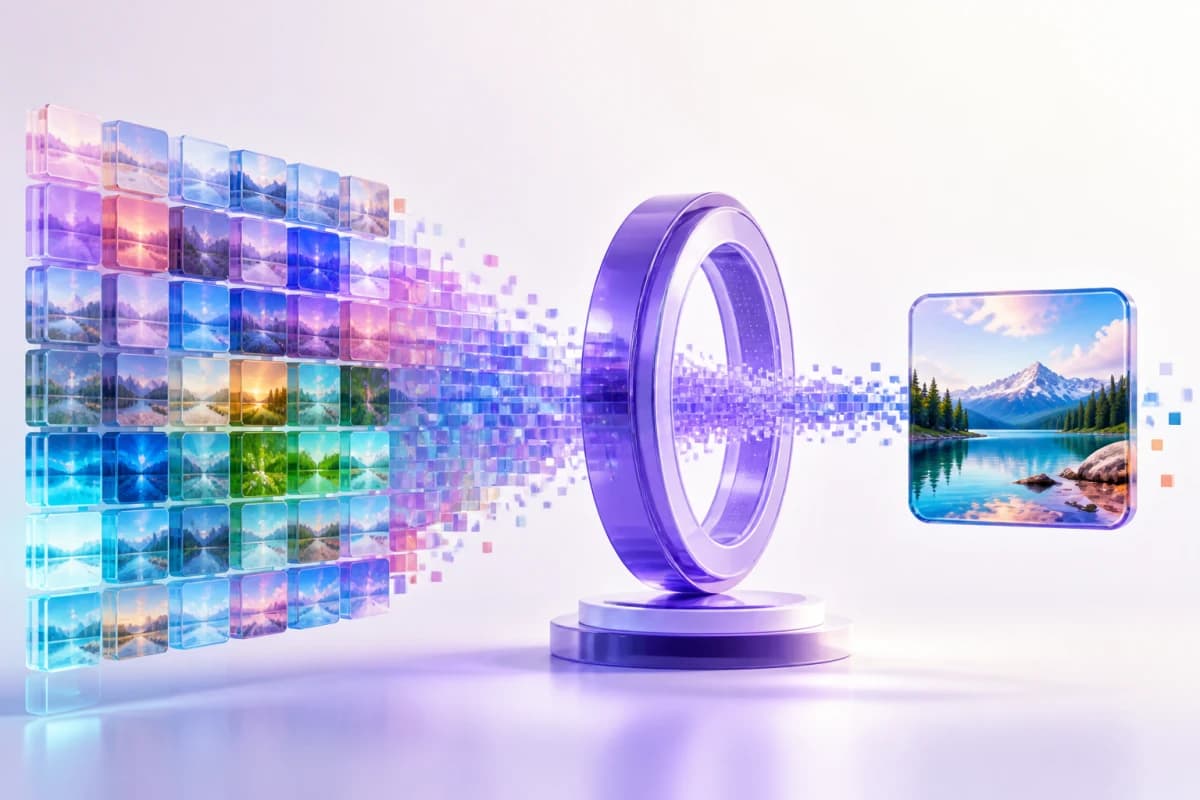
Export lean JPEG or WebP files for landing pages, blog posts, and product listings, so pages load faster and score better on Core Web Vitals.
Get a photo under the attachment limit before you hit send, or under the upload cap on a form or portal.
Keep a lighter copy for chat apps, cloud folders, and everyday sharing while using less storage.
Find the balance between picture quality and file size in seconds.
Drop in a JPEG, PNG, or WebP, or try the sample image.
Choose JPEG or WebP and slide the quality up or down — around 75% is a good starting point for photos.
Click Compress image, check the new file size and how much you saved, then download.
Adjust the quality, compare the new file size with the original, and download when it looks right.
Every pass shows the actual output size and the percentage saved, so there are no surprises after you download.
Set quality anywhere from 30% to 100% and compress again as often as you like. Go lower for the smallest file, higher when detail matters.
Your photo is compressed in your browser, so the full-size original is never uploaded. Only a small preview goes out for a quick safety check.
If the width and height need to change too, resize the image first, then compress the resized file to reduce its size further.
Answers about free image compression, JPEG and WebP quality, hitting a target size like 100 KB or 200 KB, privacy, and supported formats.
Yes, it's free. You just need a Nano Banana Pro account — signing in takes a few seconds. Compressing doesn't use any credits and never adds a watermark. The optional AI Image Upscaler is a separate feature that does use credits.
Not the original. Compression happens in your browser, and the compressed file is created on your device. The only thing sent to our servers is a small preview for a quick safety check, and it's deleted after an hour.
JPEG and WebP compression drop some image data, so it's never perfectly lossless — but at 75–85% quality the difference is usually invisible at normal viewing size. Start around 75%, compare the result, and raise the quality if fine detail matters.
For photos, 70–80% is the sweet spot: a much smaller file with no visible difference at normal viewing size. Use 85% or higher for screenshots, text, logos, or anything with sharp edges — or switch to WebP, which handles those better. Under 60% is fine for thumbnails and quick previews.
You can open JPEG, PNG, and WebP files. The compressed file is saved as JPEG or WebP — the two formats that let you trade a little quality for a much smaller file. Choose WebP if you need to keep transparency.
Not at the moment. PNG is lossless, so re-saving it as PNG rarely makes it much smaller. Instead, the tool saves your PNG as WebP (which keeps transparency) or JPEG (which doesn't) — usually a far smaller file that looks the same.
WebP often produces a smaller file at similar visual quality and can preserve transparency, which makes it a strong choice for websites. Choose JPEG when broad compatibility with older software, email clients, or print services matters most.
There's no target-size field yet, so a one-click 100 KB or 200 KB result isn't guaranteed. Lower the quality and watch the actual file size; if it's still above your target, resize the image to a smaller width first and compress again.
The original may already be efficiently compressed, or the selected format may add more data than it removes. Try a lower quality setting, switch between JPEG and WebP, or resize the image first.
No. The width and height stay exactly the same; only the file size changes. If you also want smaller dimensions, run the image through Resize Image first.
Yes. The compressed file is re-encoded in your browser, so it doesn't carry the original's EXIF metadata, including camera details and GPS location. Orientation is applied first, so the photo still looks the right way up.
Each image can be up to 25 MB, with either side up to 12,000 px and no more than 40 megapixels in total.
Not yet — it's one image at a time for now. Each one only takes a few seconds, though.
Yes. Open the page in Safari or Chrome on iPhone or Android, pick a photo, and save the compressed copy — no app to install.
Sign in, pick a quality level, compare the real file size, and download a watermark-free JPEG or WebP. No credits needed.